PDF Form Not Allowing Me to Add Text Box: 5 Causes and Fixes
Stuck trying to add text or fillable boxes to a PDF form? Learn why PDF forms lock tools and how to add static or interactive text boxes for free.

When a PDF form is not allowing you to add a text box, the document is usually restricted by an owner permissions password, locked by a cryptographic digital signature, flattened into an uneditable image, or opened in a read-only viewer like free Adobe Reader that paywalls interactive editing. To add text immediately, you can use the free OnlinePDFEdits Editor to overlay clean text boxes or fillable fields, bypass permission locks, or use native viewer workarounds without purchasing Adobe Acrobat Pro.
                    ┌─────────────────────────────────────────┐
                    │ Why Can't I Add a Text Box to My PDF?   │
                    └────────────────────┬────────────────────┘
                                         │
     ┌───────────────────┬───────────────┴───────────────┬───────────────────┐
     ▼                   ▼                               ▼                   ▼
┌──────────────┐  ┌──────────────┐                ┌──────────────┐   ┌──────────────┐
│ Owner Lock   │  │ Signed /Sig  │                │ Adobe Paywall│   │ Hidden Flags │
│ Permissions  │  │ Cryptographic│                │ Reader free  │   │ /F 2 hidden  │
│ gray out text│  │ hash locks doc│               │ disables edit│   │ font invisible│
└──────┬───────┘  └──────┬───────┘                └──────┬───────┘   └──────┬───────┘
       ▼                 ▼                               ▼                  ▼
[Strip Security]  [Print to Clean PDF]            [OnlinePDFEdits]    [Check Layers]
5 Reasons Why a PDF Form Won’t Let You Add a Text Box
Under the ISO 32000-1 PDF specification, a PDF file is composed of objects, content streams, and an interactive annotation hierarchy (/Annots). When text box tools become grayed out or refuse to place text, one of five technical barriers is active:
1. Document Permissions Password (Owner Security)
The original document creator applied permissions security (/P bitmask restriction). While you can open and read the file without a password, the security policy explicitly disables:
- Adding or modifying annotations
- Filling in form fields
- Editing document content
When this policy is enforced, software like Adobe Acrobat Reader, Apple Preview, and web browsers automatically gray out the "Add Text", "Text Box", and "Form Field" toolbar buttons.
2. The PDF Is Digitally Signed or Certified (/Sig)
If a document has been digitally signed using a cryptographic PKI certificate (visible as a blue or red ribbon banner in Acrobat), the PDF standard forbids structural modifications. Adding a new text box alters the document byte stream, which immediately breaks the cryptographic checksum and marks the signature invalid or tampered. Most PDF readers enforce this by disabling all annotation tools on signed files.
3. The Document Is a Flattened Scan or Image
If the PDF was generated from a flat scanner, smartphone photo, or saved via a printer driver, there are no digital form fields or text layers. The file is a single raster image (JPEG/PNG encoded inside an /XObject). Clicking the document will not place a cursor because the software sees pure background pixels rather than an interactive form canvas.
4. Adobe Acrobat Reader Free Tier Restrictions
A very common source of confusion is the difference between Adobe Acrobat Reader (the free viewer) and Adobe Acrobat Pro ($239/year subscription).
- In the free Adobe Reader, the primary "Edit PDF" and "Prepare Form" tools are paywalled.
- If you click "Edit PDF" in free Reader, Adobe displays a promotional upgrade modal.
- Free Reader does have a basic "Fill & Sign" tool, but it only stamps flat text on top of existing pages—it cannot create reusable, fillable text boxes for other users.
5. Hidden Annotation Flags or Invisible Font Glitches
Sometimes the text box tool actually works, but the text box does not appear on your screen:
- Annotation Flags: The
/Fflag in the PDF dictionary may have bit 2 (Hidden) or bit 4 (NoView) set, preventing the text box from rendering on screen. - Font Color Contrast: The text fill color was accidentally set to transparent or identical to the background (white text on a white form).
- Z-Index Layering: The text box was placed on a layer underneath an opaque background image.
Problem Diagnosis: Symptoms vs. Fixes
| Symptom in Your PDF Viewer | Underlying Cause | Quickest Fix |
|---|---|---|
| "Add Text" or "Text Box" icon is grayed out / unclickable | Document permissions password or digital signature lock | Strip permissions in OnlinePDFEdits or Print to PDF |
| Clicking "Edit PDF" prompts an Adobe subscription paywall | Adobe Acrobat Reader free version limitation | Use free OnlinePDFEdits or Fill & Sign tool |
| You click to type, but no cursor appears on the page | Document is a flattened raster scan without text fields | Select "Add Text Box" overlay in an online editor |
| Text box is placed, but text disappears after clicking away | Hidden annotation flag /F 2 or white-on-white font color | Select box, change font color to black (#000000) |
| Document displays "Certified by [Entity]" warning banner | Cryptographic certificate locking form state | Save a clean copy via virtual print or duplicate file |
How to Add a Text Box to a PDF for Free (Step-by-Step)
If you need to type onto a locked, flattened, or restricted PDF without purchasing expensive desktop software, use these proven methods:
Method 1: Add Free Text Boxes with OnlinePDFEdits (Fastest & Zero Setup)
OnlinePDFEdits allows you to bypass reader limitations, unlock permission-restricted forms, and place crisp text boxes directly in your browser.
1. Open onlinepdfedits.com/edit-pdf
2. Upload your PDF document
3. Click "Add Text" from the top toolbar
4. Click anywhere on the PDF to place the text box
5. Type your content and customize font size, weight, and color
6. Click "Download" to export your clean PDF
- Navigate to the OnlinePDFEdits Editor.
- Drag and drop your PDF form into the workspace.
- Select Add Text from the toolbar.
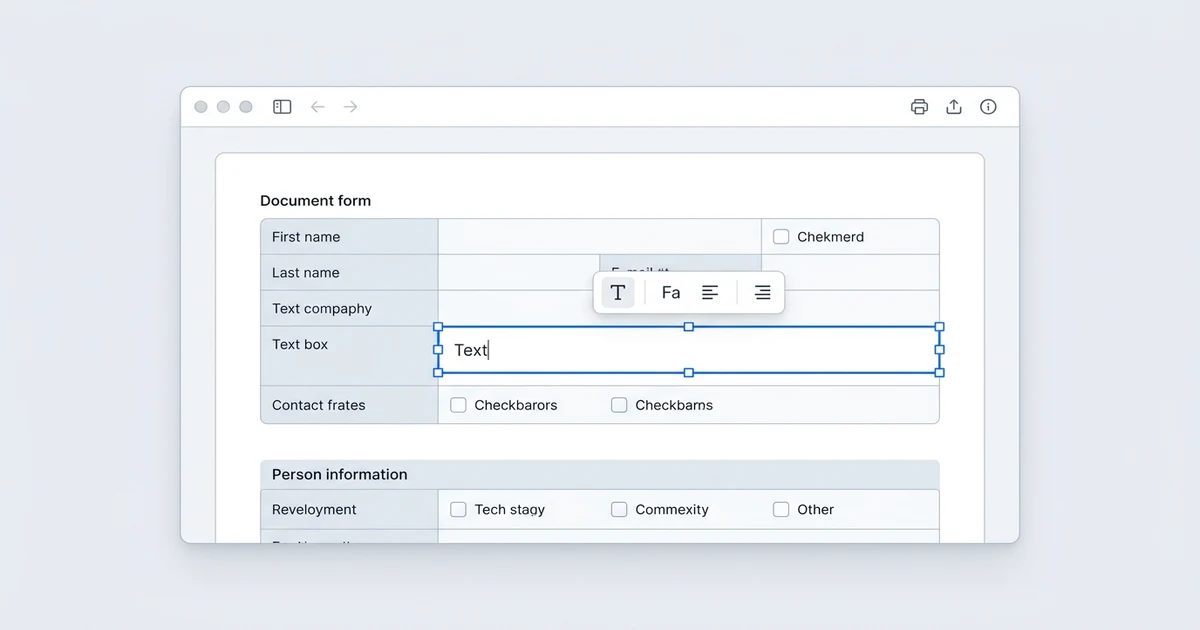
- Click anywhere on the document where you need a box. A responsive bounding box with drag handles will appear.
- Type your desired information. You can adjust the font family, font size, alignment, and color to seamlessly match the original document typography.
- If the form had stuck or pre-filled text in that spot, use the Whiteout tool first to erase the old text, then place your new text box over it.
- Click Download to save your updated PDF.
Method 2: How to Add Text in Free Adobe Acrobat Reader (Using Fill & Sign)
While free Adobe Acrobat Reader locks the full "Edit PDF" suite behind a subscription, you can still add basic static text boxes for free using the Fill & Sign utility:
- Open your PDF file in Adobe Acrobat Reader.
- In the right-hand tool sidebar (or under the All Tools menu in the modern interface), click Fill & Sign.
- In the Fill & Sign toolbar at the top, click the Add Text icon (represented by the letters
Ab). - Move your cursor to the form area and click. A blue box with a cursor will appear.
- Type your text. Use the small
Aand largeAbuttons above the field to scale the font size to fit your form line. - Go to File ➔ Save As to save your filled document.
[!NOTE] The "Fill & Sign" tool adds flat text stamps. It does not create interactive fillable form fields that other people can tab through and type into. If you need interactive fields, see Method 3 below.
Method 3: How to Add a Fillable Text Box So Others Can Fill It In
If you are creating a form that you intend to email or distribute to clients, employees, or students, you need an interactive AcroForm text field, not just flat text.
Interactive Field Structure (ISO 32000-1):
/Type /Annot ➔ /Subtype /Widget ➔ /FT /Tx (Text Field) ➔ Editable by recipients
Option A: Using Free Web Form Tools (OnlinePDFEdits)
- Open your document in OnlinePDFEdits.
- Select Form Tools ➔ Text Field.
- Click and drag a rectangular field over the empty line on your form.
- Set field properties: Field Name (e.g.,
applicant_name), placeholder hint, and border styling. - Save the file. When recipients open the PDF in Chrome, Edge, Safari, or Acrobat, the box will highlight as a fillable interactive field.
Option B: Using Adobe Acrobat Pro (Prepare Form)
If you have an active Adobe Acrobat Pro subscription:
- Open the PDF in Acrobat Pro and click All Tools ➔ Prepare Form.
- Click the Text Field icon in the toolbar.
- Drag the cursor to define the text box dimensions.
- Double-click the field to configure Text Field Properties (Font, validation rules, required field settings).
- Click Close and save the file.
Method 4: How to Fix a Digitally Locked or Permission-Protected PDF
If your PDF has permissions security that grays out your text tools in every application:
- Test the Permission Lock: In Adobe Reader, press
Ctrl + D(orCmd + Don Mac). Click the Security tab. Look at Document Restrictions Summary. If "Adding Comments" or "Page Extraction" is Not Allowed, the file has an owner lock. - Re-Print to Virtual PDF (The Print Bypass):
- Open the PDF in Google Chrome, Edge, or Apple Safari.
- Press
Ctrl + P(orCmd + P). - Change the destination printer to Save as PDF or Microsoft Print to PDF.
- Click Save.
- This process generates a brand-new PDF file with the permissions dictionary stripped away, allowing you to add text boxes freely.
- Upload to OnlinePDFEdits: Alternatively, upload the file directly to OnlinePDFEdits. Our server engine parses the document structure and strips editing restrictions automatically.
Why Text Boxes Are Not Showing Up in Your PDF
If you drew or typed a text box, but it is invisible or missing from printouts:
- Form Field Highlight Is Turned Off: In Adobe Acrobat Reader, look for the banner at the top that says "Highlight Existing Fields". If unchecked, form boxes without borders blend into the background until clicked.
- Missing Font Encoding: If the text was typed using a special Unicode character or system font that isn't embedded in the PDF, the viewer skips rendering the characters. Always use standard fonts like Helvetica, Arial, or Times New Roman.
- Print Settings Skipping Annotations: When printing a PDF, ensure the print dialog is set to Document and Markups (not "Document Only"). If set to "Document Only", all added text boxes and annotations are ignored by the printer.
When Adobe Acrobat Pro Is the Better Choice
While OnlinePDFEdits solves text box editing for everyday documents free of charge, consider enterprise software for these specialized tasks:
- Complex Mathematical Calculation Scripts: If your form requires automated JavaScript calculations (e.g., auto-calculating tax brackets, compound interest, or dynamic invoice line totals across 50 fields), Adobe Acrobat Pro's built-in JavaScript console is ideal.
- XFA Dynamic Form Architecture: Legacy government forms built on Adobe LiveCycle Designer (XML Forms Architecture) cannot be modified with standard AcroForm editors and require Adobe's proprietary engine.
- Hardware Token Signing: When attaching enterprise cryptographic smart cards (CAC/PIV cards), native desktop software provides direct hardware driver integration.
Frequently Asked Questions
Why can't I add a text box to a PDF in Adobe Acrobat?
The document is either protected with a permissions password, digitally signed, or you are using the free Adobe Reader which paywalls the primary Edit PDF tool. You can use the free Fill & Sign tool in Reader or edit the file online using OnlinePDFEdits.
How do I add a text box to a PDF for free?
Upload your document to OnlinePDFEdits, click the Add Text button on the top toolbar, click anywhere on the page to place your box, type your text, and click Download.
How to add a fillable text box to a PDF so others can fill it in?
Open your PDF in an interactive form editor like OnlinePDFEdits or Acrobat Pro Prepare Form, select the Form Field tool, draw an AcroForm text box, and save the file. The box will remain fillable in all standard PDF viewers.
Why are my text boxes not showing up after I add them?
Check that your font color is not set to white or transparent, and confirm your PDF viewer has "Highlight Existing Fields" enabled. When printing, make sure the printer dialog is set to print "Document and Markups".
Can I add a text box to a scanned PDF without converting it to Word?
Yes. Open the scanned PDF directly in OnlinePDFEdits, select the Add Text tool, and place your text box anywhere over the scanned image. You do not need to convert or reformat the file.
Facts to Verify
- Verification of Adobe Acrobat Reader's "Fill & Sign" availability in free desktop releases (Confirmed: standard free feature).
- Verification of ISO 32000-1 annotation flag bits (
/F 2Hidden,/F 4NoView) (Confirmed: ISO standard for interactive annotation rendering). - OnlinePDFEdits text overlay and whiteout capabilities (Confirmed: native features in
/edit-pdf).