Why Can't I Type in a PDF Form? Causes and Fixes
A troubleshooting guide to the real reasons a PDF form won't let you type, from flat non-interactive forms to locked fields and scanned pages, with a fix for each.

If you can't type in a PDF form, the form almost certainly has no real text fields: the blanks are just printed lines, not interactive boxes. Open the file in an online PDF editor, switch to a text or form tool, and click directly on the line to drop a typed box anywhere you want. That works whether the form is flat, scanned, or locked, because you are adding fresh text on top instead of relying on fields that were never there.
Key takeaways
- Most "can't type" forms are flat, not broken: the lines look like fields but are just printed graphics, so there is nothing to click into; you add your own text box instead.
- A scanned form is an image, which means no part of it is selectable or typeable; you type over the picture rather than into it.
- Locked or secured PDFs disable typing on purpose, and you need the right tool or permission to add text, not a different click.
- The app matters as much as the file; a basic reader can only fill fields that already exist, while an editor can add text where no field was ever placed.
- Adding a text box always works even when proper form fields fail, because you are layering new content onto the page rather than depending on the form's structure.
- Test by clicking a blank, then clicking elsewhere: if a cursor appears and stays, it is a real field; if nothing happens, the form is flat and needs a text box.
First, figure out which kind of "can't type" you have
There is no single reason a PDF won't let you type, and the fix depends entirely on which one you are hitting. Before changing anything, run a ten-second test so you are solving the right problem.
Open the file and click directly on a blank line where you expect to write. Watch what happens:
- A blinking cursor appears and you can type → the field works; you were probably clicking slightly off it, or using a reader that needed you to click more precisely.
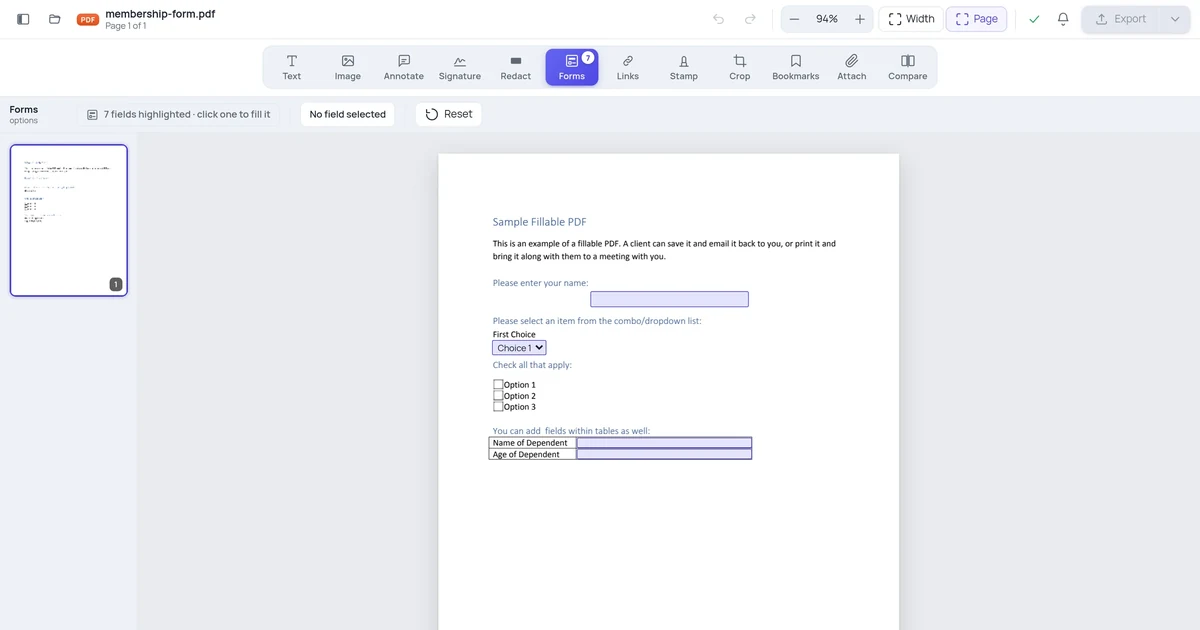
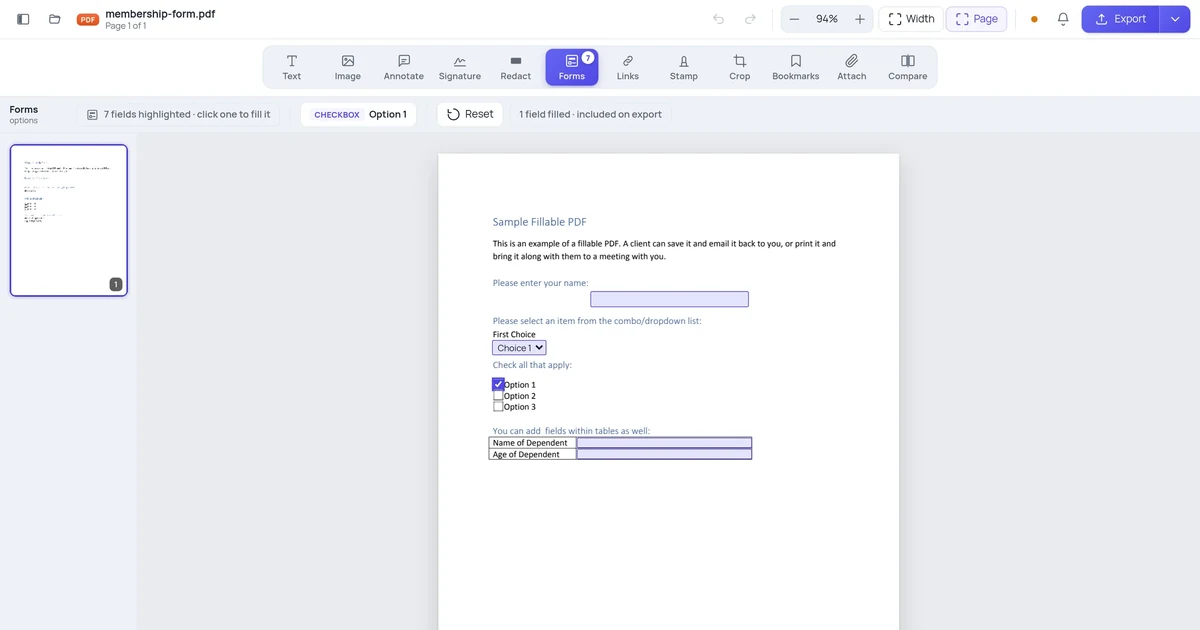
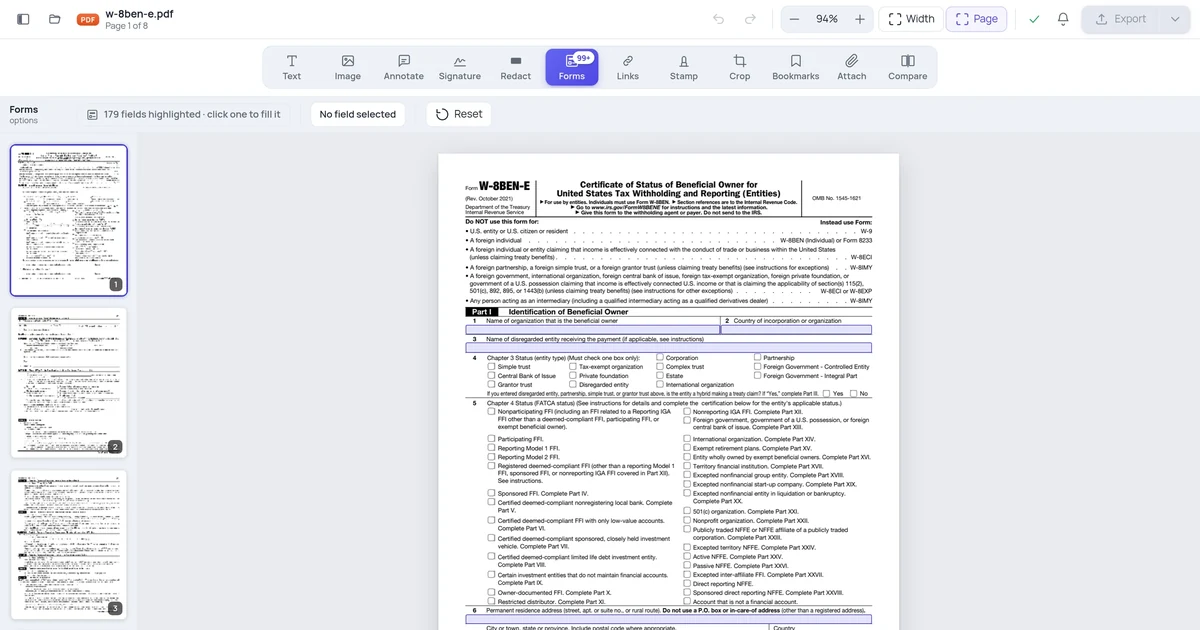
- The line highlights or shows a box outline but typing does nothing → there is a field there, but it may be read-only or the form is locked.
- Nothing happens at all, no cursor, no highlight → there are no interactive fields; the form is flat or scanned, which is by far the most common case.
- You get a message about the document being secured or protected → the PDF has permissions that block editing.
That single click tells you which section below to read. The "nothing happens" result covers most people who land here searching why their pdf form wont let me type, so we start there.
Cause 1: the form is flat (no real fields)
This is the number one reason, and it surprises people because the form looks completely fillable. It has neat underlines, labelled blanks, little square boxes. But those are just ink on the page, printed the same way the question text is. There is no interactive layer behind them, so there is nothing for your cursor to enter.
A flat form usually comes from someone exporting a Word document or design file to PDF without ever adding form fields, or from a form that was filled, printed, and re-scanned. Either way, the fix is the same: stop trying to type into the blanks and start typing on top of them.
- Open the form in an online editor. Go to the PDF editor and upload your file. Every page loads in the browser ready to edit.
- Pick the text tool. Choose Add Text or the text box tool from the toolbar. Your cursor changes to show you can place text.
- Click on the blank line. Click right where you want to write, on the printed underline or in the empty box. A text box opens at that exact spot.
- Type your answer. The text sits on the page wherever you placed it.
- Size and align it. Match the font size to the surrounding text and nudge the box so your words rest on the line, not above or below it.
- Repeat for every blank, then save and download.
This approach is bulletproof because it does not care whether the form has fields. You are adding new content, so it works on flat forms, scanned forms, and forms where the original fields are broken. If you find yourself doing this on a form you will reuse, it is worth converting it properly once; our guide on how to make a non-fillable PDF fillable walks through adding real interactive fields so the next person can just click and type.
Cause 2: it's a scanned document, not a digital PDF
A scanned form is a photograph of paper saved as a PDF. There is no text in it at all, only an image of text. That is why you can't select any of the words, let alone type into a blank. The whole page, questions and lines and all, is one flat picture.
You can confirm this fast: try to highlight a word with your mouse. If you cannot select any text anywhere on the page, the document is scanned (or fully flattened, which behaves the same way for typing).
The fix is identical to a flat form, because as far as typing goes, a scan is a flat form:
- Open the scan in the PDF editor.
- Pick the text tool.
- Click on the line and type your answer over the image.
- Align it to the printed line and save.
The catch: typed text won't match the scan's look
Here is the thing nobody warns you about. Your typed answers will be crisp, clean digital text sitting on top of a slightly fuzzy scanned background. On a low-quality scan the contrast can look obvious. That is usually fine for a form you are completing, but if you need it to look hand-filled or seamless, keep your font size and color close to the document's and avoid pure black on a grey scan. And remember the scan's own text is still not selectable afterward; you have only added your answers, not made the original typeable.
Cause 3: the form is locked, secured, or read-only
Sometimes the fields exist and work, but the document deliberately blocks editing. The PDF may carry permission settings that disable form filling or content changes, or individual fields may be marked read-only so they display a value but cannot be changed.
Signs you are in this situation:
- A message about the document being secured, protected, or having restricted permissions.
- Fields that show an outline when clicked but refuse your keystrokes.
- A padlock icon or a note that editing requires a password.
How to handle it:
- Check whether you have the password. If the form is protected and you legitimately have the open or permissions password, supply it and editing unlocks.
- If fields are read-only, the form author set them that way on purpose, often for prefilled values. You may not be meant to change them.
- For blanks that should be fillable but are locked, open the file in the PDF editor and add your own text boxes over the lines, the same flat-form method, since adding new content sidesteps locked existing fields.
- If the whole document blocks edits and you have no permission, that restriction is intentional; ask whoever sent the form for an unlocked copy.
A note on honesty here: do not try to strip security from a form you are not authorized to change, like a signed contract or an official record. If the lock is there to protect a finalized document, the right move is to request the version you are meant to fill, not force your way past it.
Cause 4: the app you're using can only fill, not create
The file might be perfectly fine, and the problem is your software. This trips people up because the same PDF behaves differently depending on what opens it.
A plain PDF reader can fill fields that already exist, but it cannot create a place to type where no field was placed. So on a flat form, a basic reader gives you nothing to click, while an editor lets you drop a text box anywhere. Knowing which you have saves a lot of frustration.
| What you're using | Can fill existing fields | Can type where there's no field | Notes |
|---|---|---|---|
| Online PDF editor | Yes | Yes | Add a text box on any line, field or not |
| Desktop PDF editor (full) | Yes | Yes | Forms tools create fields; text tool types anywhere |
| Free desktop reader | Yes | Usually no | Fills existing fields only; can't add text to flat forms |
| Browser's built-in PDF viewer | Sometimes | No | Often fills simple fields but can't add new text |
| Phone's default PDF preview | Sometimes | Rarely | Markup can scribble; true typing on flat forms is rare |
If you opened the form in your browser's built-in viewer or your phone's quick-look preview and nothing happens when you click a blank, do not assume the form is broken. Reopen it in an actual editor first. Often the form is flat and only an editor can give you a typing spot, but sometimes the fields are real and the lightweight viewer just was not letting you in.
Platform quick fixes
- Online (any browser): open the PDF editor, use the text tool, click and type. Works on flat, scanned, and field-based forms.
- Windows: a full PDF editor's Fill & Sign or text tool types on any form; the free reader only fills existing fields.
- Mac: Preview fills existing fields and can add a text box via Markup, which is enough for many flat forms.
- iPhone / iPad: Markup lets you add a text box and type, but placement is fiddly; an editor app is steadier for real forms.
- Android: check your PDF app actually adds text rather than only filling fields; many only do the latter.
Cause 5: the field exists but won't accept your input
Less common, but real: the form has a working field and it still misbehaves. A few specific things cause this.
- Wrong field type. You are clicking a checkbox or dropdown expecting to type free text. Checkboxes toggle, dropdowns offer set choices, and neither takes typing. Look at what the field actually is.
- A character limit. Some text fields cap how many characters they accept, so typing stops dead partway through. There is rarely a visible warning; the field just refuses more.
- Comb fields. A field split into fixed boxes (like a date or postcode) accepts one character per box and can feel like it is blocking you when you are simply past the last box.
- Calculated or auto-filled fields. Some fields compute their value from others and are locked from direct entry by design.
For any of these, the workaround when you genuinely need different text is the reliable one: place your own text box over the spot with the PDF editor and type what you need. It overrides whatever the original field was doing.
Cause 6: your typing disappears after you save
Sometimes you can type, the answers look fine, and then they vanish when you reopen the file or send it on. That is not really a "can't type" problem, it is a save problem, but it sends people down the same rabbit hole.
The usual culprit is a reader that lets you type into fields on screen but does not properly write those values back into the file when you save, or a "save a copy" path that drops the field data. If your filled answers keep disappearing, that specific failure has its own causes and fixes; see why won't my PDF form save my answers and how to fix it for the full breakdown. The short version: fill and save in a tool that flattens or correctly embeds your input, then reopen the saved file to confirm the text held before you send it anywhere.
The reliable fix that works on every kind of form
When you are not sure which cause you have, or you have several at once, there is one method that does not fail: add your own text on top of the page. It ignores whether fields exist, whether the form is scanned, and whether the original fields are locked, because you are layering fresh content rather than depending on the form's structure.
- Upload the form to the PDF editor.
- Select the text tool.
- Click each blank and type your answer directly onto the page.
- Match the surrounding font size and color so it reads naturally.
- Align each entry to its line by nudging the box; zoom in for precision.
- Save and download, then reopen the saved file to confirm your text is there.
The trade-off worth naming: this fills the form for you, but it does not turn the file into a reusable fillable form for others. If you are completing the form once, this is exactly right and fastest. If you are the one distributing a form that many people must fill on screen, do the proper job once instead and add real fields, as covered in how to make a non-fillable PDF fillable. Pick by who has to type: you, or everyone else.
FAQ
Why can't I fill in a PDF form?
Almost always because the form is flat: the lines and boxes are printed graphics, not interactive fields, so there is nothing for your cursor to enter. Less often, the document is scanned (an image with no real text), locked with editing restrictions, or opened in a reader that can only fill existing fields. The fix that works in every case is to open the file in an online editor, pick the text tool, and type your answers directly onto the page instead of trying to click into blanks.
How do I know if a PDF form is fillable or just flat?
Click on a blank line and watch closely. If a blinking cursor appears and stays, the form has a real interactive field and you can type into it. If the click does nothing, no cursor and no highlight, the form is flat and the blanks are just printed lines. A second quick test: try to highlight any text on the page; if you cannot select a single word, the document is scanned or fully flattened, which also means no typeable fields.
Can I type on a scanned PDF form?
Yes, but you type over the scan, not into it. A scanned form is a single image, so nothing in it is selectable or directly typeable. Open it in an online editor, choose the text tool, click on the printed line, and type your answer on top of the image. Match your font size and color to the document so it reads cleanly. The scan's own text stays non-selectable; you are only adding your answers as new content on top.
Why won't my PDF let me type even though I see boxes?
Those boxes may be drawn graphics rather than interactive fields, so they look fillable but do nothing when clicked. The form could also be locked or secured, have read-only fields, or be open in a reader that only fills pre-existing fields. Run the click test: if no cursor appears, the boxes are not real fields. Either way, opening the file in the PDF editor and placing a text box over each box lets you type regardless.
How do I type into a PDF that is locked or protected?
If the form is password protected and you legitimately hold the password, enter it to unlock editing. If specific fields are read-only, the author set them that way on purpose and you may not be meant to change them. For blanks that should be fillable but are locked, add your own text boxes over the lines in an editor, which sidesteps the locked fields. If the whole document blocks edits and you have no permission, ask whoever sent it for an unlocked copy rather than forcing past the protection.